Quantum computing basics part 2
A picture is worth a thousand words. This old saying holds true in almost any subject one can think of. It is no different when it comes to implementation of quantum circuits. Visualisation of circuits can be crucial, especially when you build bigger, more complicated ones. It may be much easier to understand what they do, and why they yield these (and not other) results when looking at their diagrams instead of the code that brought them to life. In this post I will walk you through the most common use cases in circuit visualisation.
I use Qiskit as the quantum framework of choice, and the code you see here is written in Python.
A simple circuit
You cannot visualise something that does not exist, so let us start with a rather simple circuit that we are going to use through most of this article.
circuit = QuantumCircuit(3, 3)
circuit.h(range(3))
circuit.x(0)
circuit.cz(0, 1)
circuit.x(2)
circuit.measure(range(3), range(3))
Simple draw
So, what does this circuit do? Looking at the code, you can tell that it applies a Hadamard gate to all the qubits, then a NOT gate to the first qubit, a control-Z gate to the first and second qubits, and finally a NOT gate to the last qubit. Then a measurement is performed on all the qubits. But in order to tell it, you must remember how the range() function works, and how the qubits are ordered in Qiskit. It would be much easier to not have to rely on all this knowledge, would it not?
Qiskit has a lot of sophisticated functionality as far as drawing the circuits goes, but it is also vital to know the basics. After all, all that functionality relies on packages and software that may not be available to you all the time. The first and simplest way to get a circuit print is to pass it to the print() function.
print(circuit)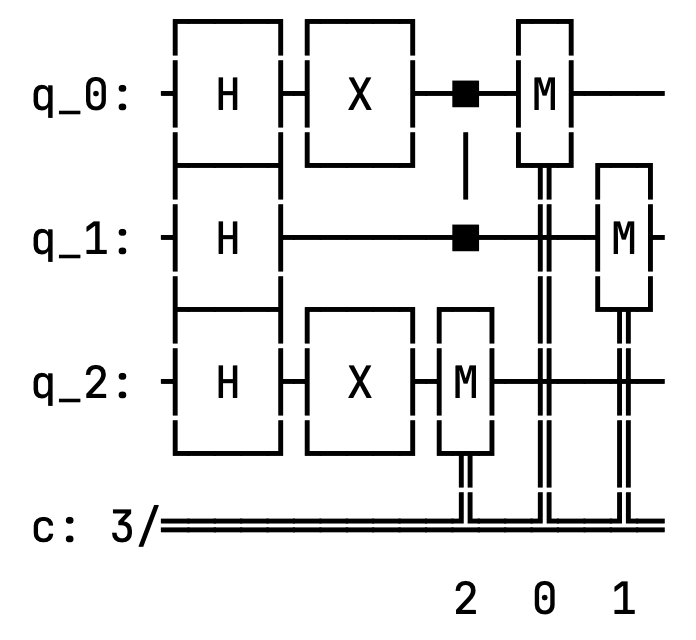
It is not pretty, but it works. A slightly better result can be achieved by calling the draw() function on the circuit object.
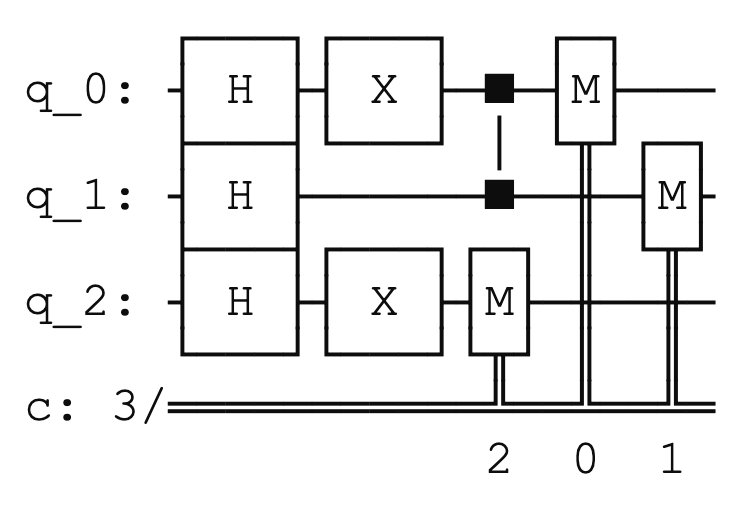
This one looks much better. But can we even get better than this?
Rendering engines
Qiskit supports external rendering engines. A rendering engine is a software component responsible for converting data (like vector graphics, text, or 3D models) into a visual output (e.g., images, animations, or interactive displays). It handles tasks like drawing shapes, applying colors, managing fonts, and rendering layouts. You can use those engines to get better circuit diagrams than the simple draw allows for.
The less popular, but more capable, engine is LaTeX. It is a separate software package that must be installed independently on the system. If you use a MacBook like me, you can get a copy here. Additionally, you must ensure that your project uses the qcircuit package. Then you can select the LaTeX backend as your rendering system this way:
circuit.draw(output="latex")The most popular engine is Matplotlib. I guess it is because its capabilities are fairly decent, but it is much easier to install, and manage. You just have to install the pylatexenc and matplotlib packages in your virtual environment (or Jupyter server), and you are good to go. Then you can print the circuit using the following command.
circuit.draw(output="mpl")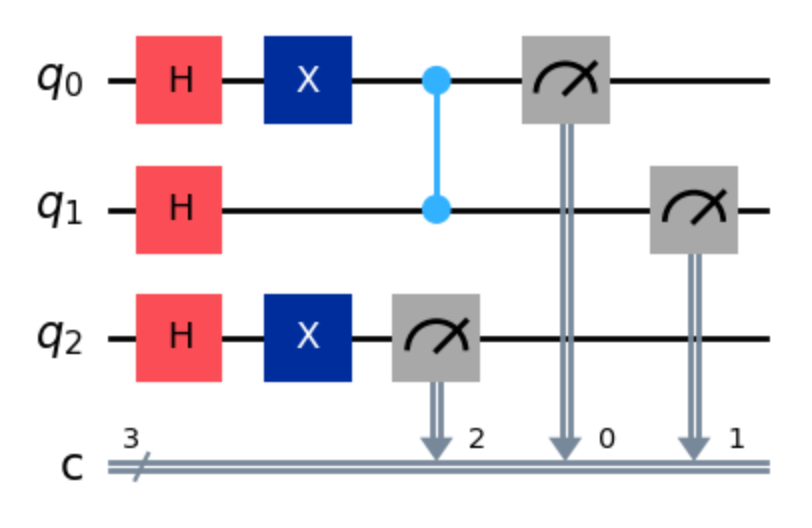
This one looks much better, does it not?
I will use Matplotlib in the rest of the examples in this article, but if you wish to use LaTeX instead, just change the value that you pass to the output parameter.
How does the draw function work?
Normally, the draw method returns the rendered image as an object and prints nothing.
Which class it returns depends on the output you specify: the default ’text’ yields a TextDrawer, ’mpl’ yields a matplotlib.Figure, and ’latext’ yields a PIL.Image object. Jupyter notebooks recognise these return types and display them automatically, but outside of Jupyter the images will not appear on their own. So do not be surprised that nothing is drawn if you use a vanilla Python environment.
Saving the output
So far so good, but apart from visual inspection, the figures that we have plotted are not for much use. Sure, you can make print screens of them to include them in your documentation, or share around, but it will soon become cumbersome, or not really feasible (especially, if your circuits get bigger and bigger). Luckily, you can save the render to a separate file.
Sometimes our circuits can get quite big. Jupyter does its best to fit them in the available space, but it can be useful to save the diagram as an image file. The draw method has an optional argument filename that allows us to specify the name of the file where to save the diagram. The file format is inferred from the extension of the filename, and it can be any format supported by Matplotlib, such as PNG, PDF, SVG, etc. This way you can save the diagram in a high-quality format that can be easily included in reports, presentations, or publications, or just enlarge it to see the details more clearly.
circuit.draw(output="mpl", filename="circuit-mpl.png")By default the file is saved to the current working directory, but you can provide a relative or an absolute path if you wish to override this behaviour.
circuit.draw(output="mpl", filename="./img/circuit-mpl.png")Additional controls
Interactivity
Interactivity is actually a big word for what is available in circuit plotting. When you call the draw function using either Matplotlib or LaTeX as the render engines, you can pass the interactivity=True argument in the kwarg parameter. It will cause the drawing to be opened in a new window. It has one downside though. It does not work in Jupyter notebooks so well.
Barriers
Barriers are a very useful tool in bigger circuits, but they can be effectively demonstrated in our small circuit too. Let us rewrite it adding two barriers to it.
circuit = QuantumCircuit(3, 3)
circuit.h(range(3))
circuit.barrier()
circuit.x(0)
circuit.cz(0, 1)
circuit.x(2)
circuit.barrier()
circuit.measure(range(3), range(3))
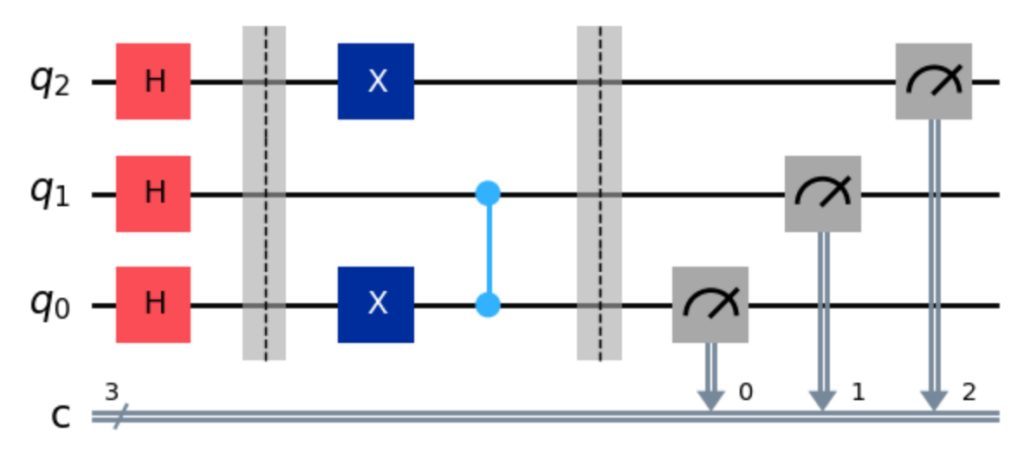
Calling the circuit.draw(output="mpl") function will give us the following result.
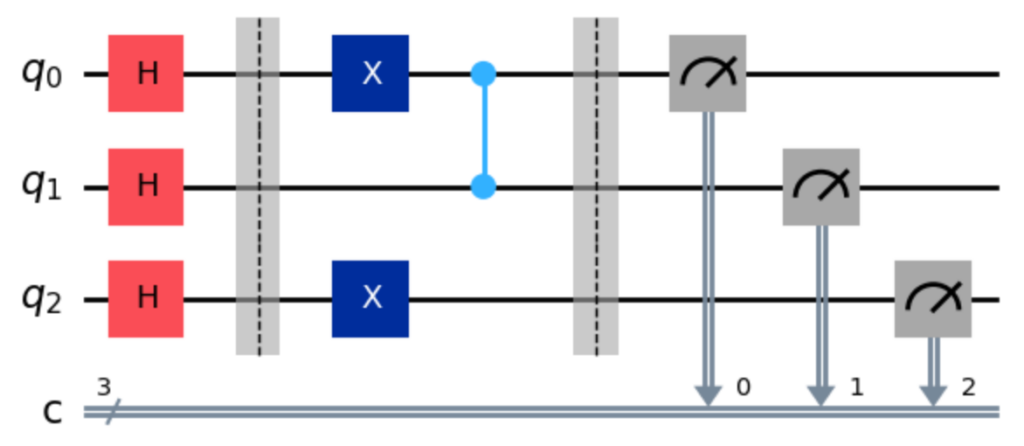
The barriers are those two vertical, grey bars. They do not have any logical effect on the circle, but allow us to visually group distinct parts of it.
Some circuits come in with built-in barriers. This can be the case when you use a quantum primitive, or you append sub-circuits to a bigger one. They are there to distinguish distinct parts of the super-circuit. But sometimes they may be in the way of what you are trying to achieve. You can disable them with the following line of code.
circuit.draw(output="mpl", plot_barriers=False)In the case of our modified circuit we will get the following result.
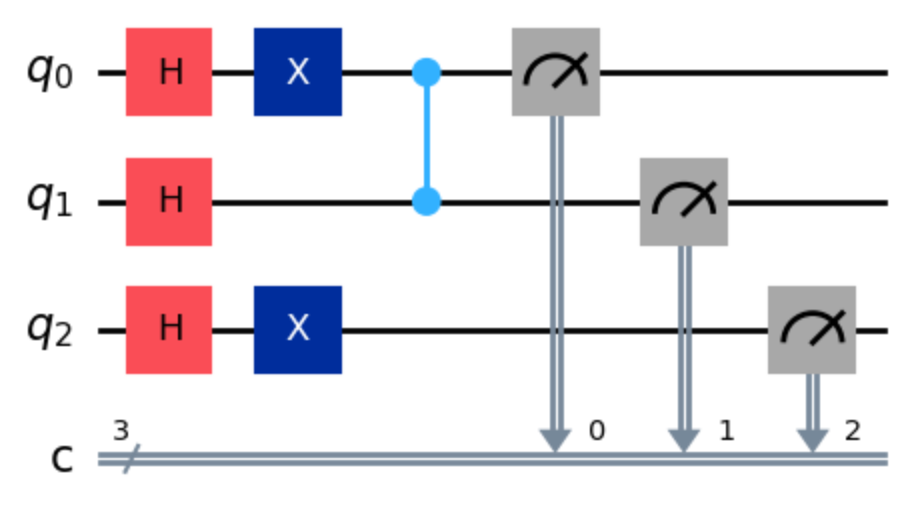
Sure, in the case of our circuit it does not really make sense to disable the barriers that we put there ourselves, but, as I wrote, sometimes you do not control the code of the circuit, but would still like to get rid of the additional separators.
Reversing the qubits
Qiskit uses little endian by default. If you do not know what I am writing about right now, please check a dedicated post on it that I published a while ago. This, however, may be in the way of how you want to visualise the data. You can easily reverse the order of the qubits in the render with this line.
circuit.draw(output="mpl", reverse_bits=True)As you can see, the qubits are listed now from the last (and not first) index at the top.
Styling
Surprisingly enough, Matplotlib supports providing custom styles to the rendering engine. You can create a style object (using a syntax known from CSS), and then pass it to your drawing function like in the following example.
background = {"backgroundcolor": "lightblue"}
circuit.draw(output="mpl", style=background)
It will obviously change the background colour to light blue.
You can also steer the scale of the image by setting the scale parameter of the draw function, like in the following example:
circuit.draw(output="mpl", scale=0.3)This may help visualising bigger circuits in Jupyter notebooks by shrinking them.
Folding
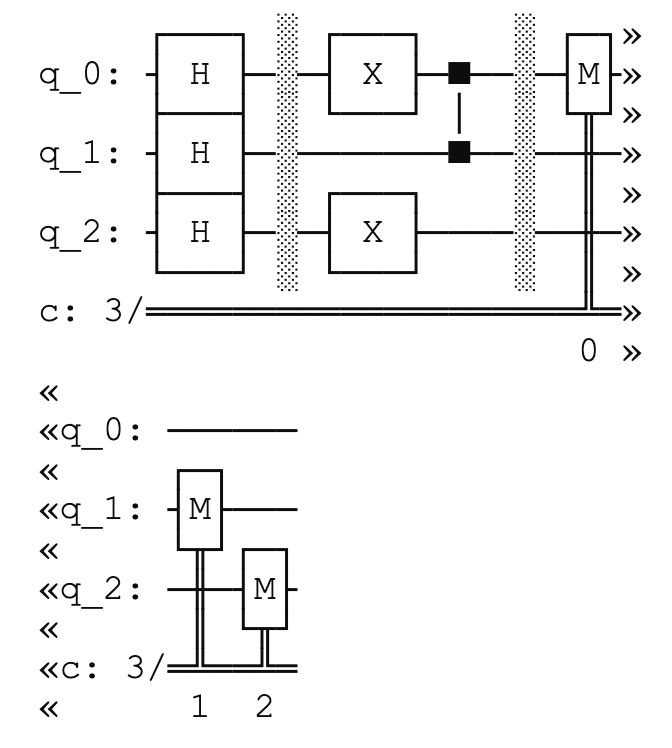
Folding was a very popular technique of managing the output of programs back in the days where command line interfaces were prevalent. You can still see it in action today if you use tools like AWS CLI. It serves the same purpose in Qiskit. If you use the text rendering engine, and you have strict display size limitations, you can fold the output to the next line like this:
circuit.draw(output="text", fold=30)The result looks somewhat funny, with the double arrows indicating the folding line. I do not recall using it before doing the research for this blog post, but I hope this trick may save you one day.
Standalone function
Last but not least, Qiskit allows printing circuits without invoking functions on them. There is a standalone function circuit_drawer that effectively does the same as the draw function from the QuantumCircuit class. You have to import a separate package — qiskit.visualization — in order to benefit from it, but otherwise the usage is quite straightforward.
from qiskit.visualization import circuit_drawer
circuit_drawer(circuit, output="mpl")
The function supports all of the parameters and print options that I discussed in this article, and I encourage you to experiment a bit with it.
Conclusion
Visualisation is not a luxury, it is a necessity when you start to juggle more than a handful of qubits or when you need to communicate your ideas to others. In Qiskit the draw method is the gateway to a rich set of tools that let you switch between a quick text preview, a tidy Matplotlib image, or a high‑resolution LaTeX output with a single line of code. You can even open the figure in a separate window, drop in barriers to group logical blocks, reverse the qubit order to match your intuition, and customize colours, scale or background with a few dictionary entries. If you prefer a more imperative style, the circuit_drawer helper gives you the same flexibility without having to touch the circuit object itself.
Beyond the aesthetics, these visual aids help you spot mistakes, understand interference patterns, and explain the behaviour of your circuit in papers, slides or notebooks. The ability to fold long text outputs, to save diagrams in vector formats, and to toggle optional features like barriers means you can adapt the same code to a wide range of audiences and display constraints.
Circuit visualisation is just a beginning, a step that you should remember before submitting your circuit to run on a simulator or real hardware. But the journey does not end here. In the next part of this series we will take a look at visualising computation results.